Creating Exam Invitations

Creating Exam Invitations
Exam invitations can only be created and sent out by system administrators. The following article will
explain how to create an exam invitation. *Note that creating an invitation is not the same as sending an exam invitation.
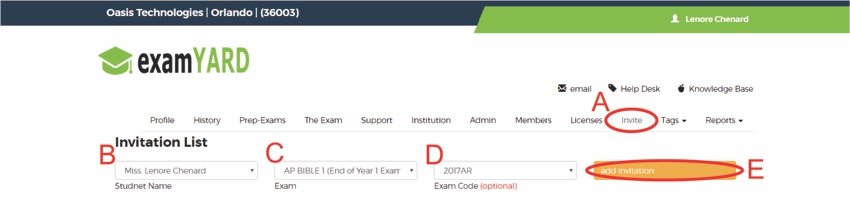
A: Click on "Invite"
B: Select the students name
*The list is alphabetical by last name
C: Select the exam
D: Select the exam code (drop down box that lists all of your bundled tags)
*See help doc on Creating / Applying bundled tags
E: Click on "add invitation"
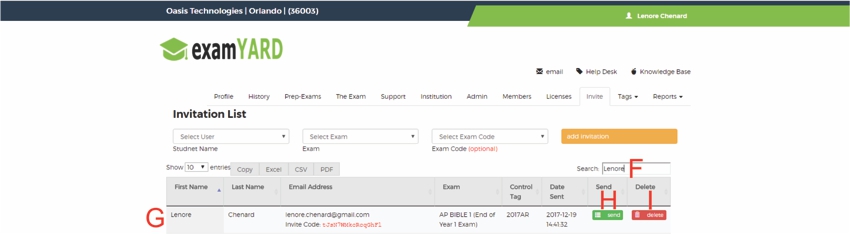
F: Type in the student's name or the name of the exam
G: The exam invitation was successfully created
*The exam has not yet been sent to the student
H: Click on "send" to send to the student
*See "Sending Exam Invitations" for more help
I: Click on "delete" to delete the invitation
All articles in the Knowledge Base have been submitted by one of our users, from one of our member schools (colleges / universities).
If you would like to become a Knowledge Base contributor please contact us through the Help Desk and let us know of your interest.

(c) 2018 Oasis Technologies | Orlando, Florida USA